
Appearance
Dashboard
The Dashboard serves as the central hub for learners to track their overall learning progress, view accumulated points, and quickly resume or access their assigned courses.
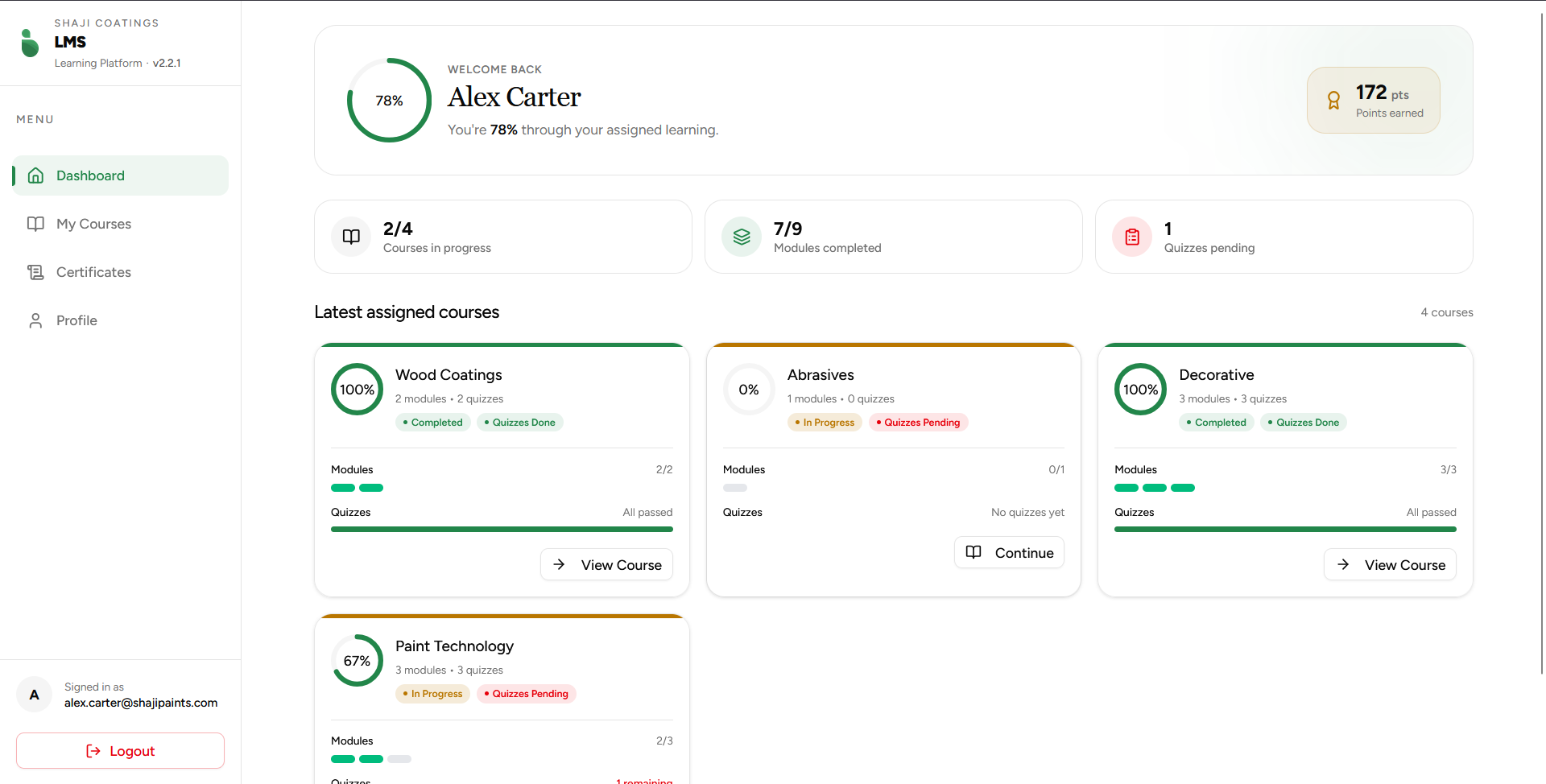 Figure 1: The main learner dashboard interface.
Overview Metrics
At the top of the dashboard, four key performance indicators (KPIs) provide a snapshot of the learner's current standing:
| Metric | Description | Current Value (Example) |
|---|---|---|
| Overall Progress | Total completion percentage across all assigned materials. | 78% |
| Points | Total reward points earned from completing modules and passing quizzes. | 172 pts |
| Courses In Progress | The ratio of active courses currently being worked on out of total assigned courses. | 2 / 4 |
| Modules Completed | The ratio of modules completed out of total assigned modules. | 7 / 9 |
| Quizzes Pending | The number of quizzes currently awaiting completion. | 1 |
Latest Assigned Courses
This section displays individual course cards, allowing learners to track module-specific progression and quickly navigate into course contents.
Course Card Components
Each card contains the following UI elements and data points:
- Completion Ring: A visual circular progress indicator showing the exact percentage of the course completed.
- Status Badges: Dynamic tags indicating the current state of the course (e.g.,
Completed,In Progress,Quizzes Done,Quizzes Pending). - Module Tracker: Displays the number of completed modules against the total modules available (e.g.,
2/2or0/1). - Quiz Progress Bar: A dedicated progress indicator tracking passed quizzes.
- Action Button: Contextual buttons such as View Course (for completed/reviewed states) or Continue (to resume in-progress material).
Sample Course States
Based on the dashboard layout, courses typically fall into one of the following states:
1. Completed State
- Example:
Wood CoatingsorDecorative - Indicators: Rings display
100%, badges showCompletedandQuizzes Done, and the module/quiz bars are entirely filled. - Action: Click View Course to review completed materials.
2. In Progress / Pending State
- Example:
Abrasives - Indicators: Ring displays
0%(or current progress), badges showIn ProgressandQuizzes Pending, and progress bars remain unfulfilled. - Action: Click Continue to start or pick up where you left off.